AI Team Builder
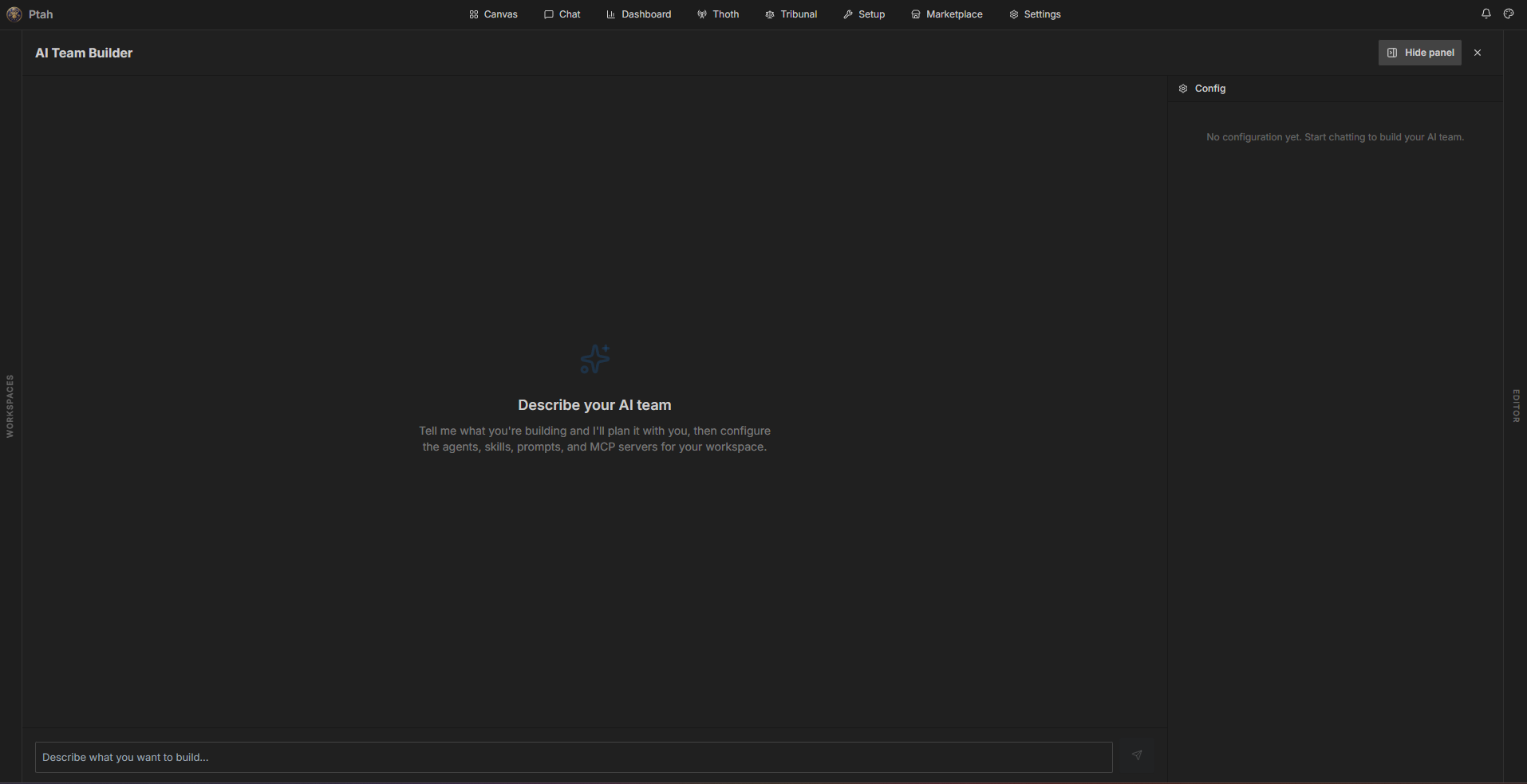
The AI Team Builder (also called the Harness Builder) is a conversational way to assemble a complete agent configuration for your workspace. Where the Setup Wizard generates an opinionated roster from a scan, the Team Builder lets you describe what you’re building and shape every piece of the configuration with Ptah’s help.
Opening it
Section titled “Opening it”From the Setup Hub, click the AI Team Builder card. The card reads Create AI Team if no CLAUDE.md exists yet, or Edit AI Team if your workspace already has one.
How it works
Section titled “How it works”The Team Builder is a two-pane view:
- Left — a chat transcript. You describe your project; Ptah plans it with you and streams its work (analysis, suggestions, generated files) as an execution tree.
- Right — a live Config preview that fills in as the conversation progresses.
Start by telling it what you’re building, for example:
“A NestJS + Prisma REST API with a Stripe billing module and a Playwright e2e suite. I want strict review on anything touching payments.”
Ptah responds by planning the team, then proposing concrete configuration. As it works it may surface permission requests and questions inline in the transcript — answer them to steer the result.
What it configures
Section titled “What it configures”A harness is a packaged agent configuration. The Team Builder can fill in any combination of:
| Section | What it holds |
|---|---|
| Persona | The team’s overall identity, description, and goals |
| Agents | Which built-in agents are enabled, plus any custom sub-agents designed for your project |
| Skills | Existing skills to include, plus new skills generated for your stack |
| Prompt | A system prompt and enhanced sections layered on top of the defaults |
| MCP | MCP servers to attach and which of their tools are enabled |
| CLAUDE.md | The generated project CLAUDE.md, including any custom sections |
You can keep refining by sending more messages — add an agent, tighten a prompt, attach an MCP server — until the config reads the way you want.
Applying to your workspace
Section titled “Applying to your workspace”When the configuration is ready, the builder shows Configuration looks ready to apply. Click Apply to Workspace (in the banner or the side panel) and Ptah writes the result as:
- a project
CLAUDE.md, - agent files under
.claude/agents/, and - any generated skills.
The Setup Hub Active Configuration card flips to show CLAUDE.md present and Agent config active once applied.
Saving presets
Section titled “Saving presets”Configurations you build can be saved as presets — reusable AI team setups that appear in the Setup Hub. A preset captures the persona, agents, skills, prompt, and MCP selections so you can re-apply the same team to another workspace with one click. This is ideal for teams that maintain a house style across many repos.
When to use the Team Builder
Section titled “When to use the Team Builder”- You want precise control over agents, prompts, and tools rather than an auto-generated roster.
- Your project needs custom skills or MCP servers wired in from the start.
- You’re standardizing a reusable team across multiple repositories (save it as a preset).
For a brand-new, empty repository, start from the New Project flow instead — it scaffolds the project and builds its team in one pass.