Smithery
Smithery is a registry of hosted MCP servers. Through the Marketplace, Ptah lets you search Smithery, vet servers, fill in any required configuration, and wire a connection into your workspace — usually in a click or two.
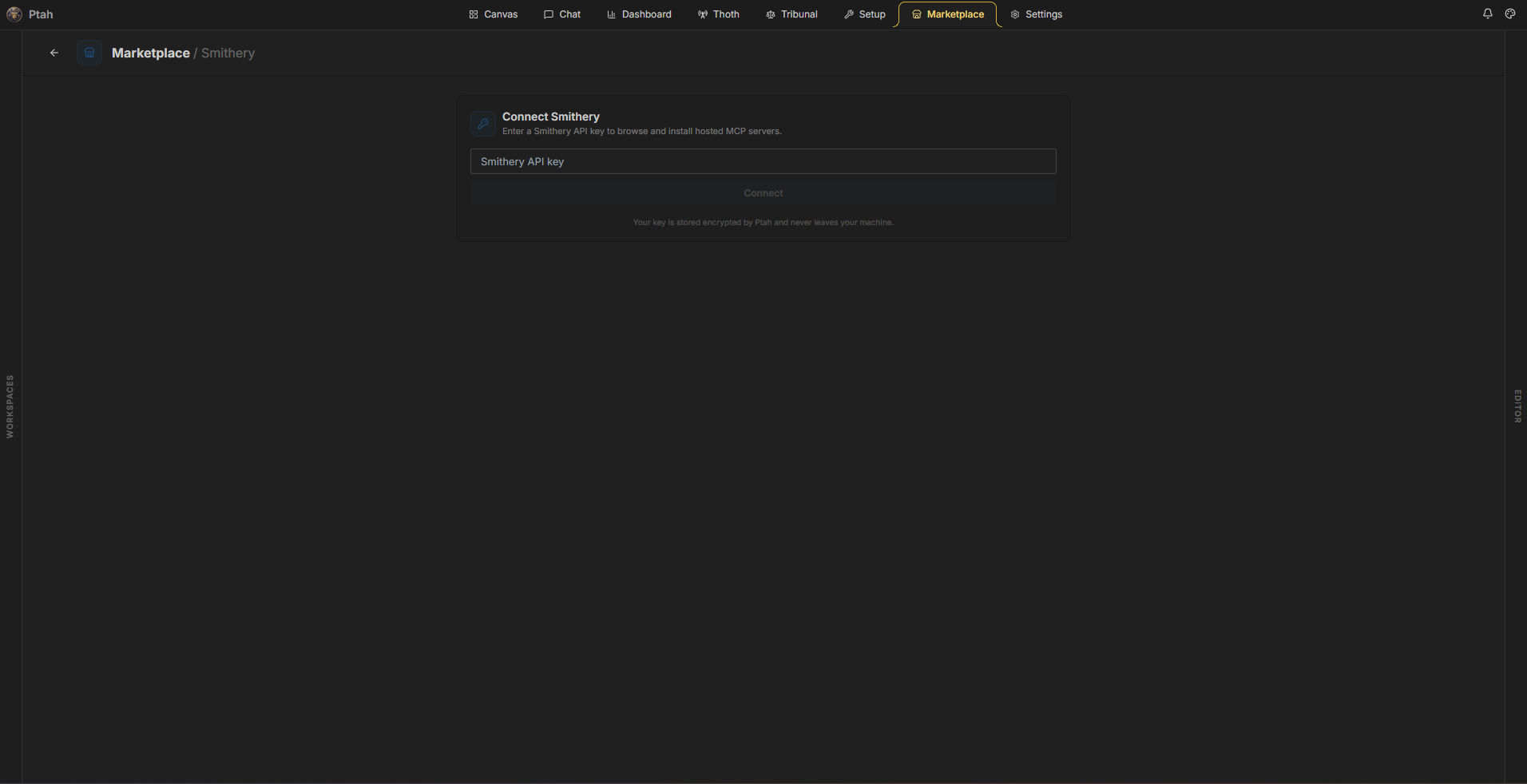
Connecting Smithery
Section titled “Connecting Smithery”The first time you open the Smithery provider, Ptah asks for a Smithery API key. Until a key is saved, no browsing happens.
- Open Marketplace → Smithery.
- Paste your Smithery API key into the Connect Smithery prompt and click Connect.
- Ptah verifies the key and loads the popular-servers list.
Your Smithery account
Section titled “Your Smithery account”Once a key is saved, an account row shows the Smithery namespace every Ptah install lands in. If your key has more than one namespace, Ptah names it and installs into the first — the row says so. If the key has no namespace at all, the row shows the reason instead.
Below the account row, a Connections list shows every connection in that namespace — the ones Ptah created and any you made in Smithery directly. Each row shows a status badge:
| Badge | Meaning |
|---|---|
| Connected | The connection is authorized and ready to use |
| Needs authorization | Smithery still needs you to finish sign-in for this one |
| Error | Smithery reported a problem with this connection |
A connection Ptah installed also carries a Managed by Ptah badge, an Authorize button when it is not yet connected, and a Remove button. A connection you made outside Ptah shows neither button — Ptah will not disconnect or reauthorize a connection it did not create; manage those from Smithery itself.
Browsing servers
Section titled “Browsing servers”Once connected you’ll see Popular Servers, and a search box for finding specific ones. Each result card shows the server name, a short description, and trust badges:
| Badge | Meaning |
|---|---|
| Verified | The server is verified by Smithery |
| Scan passed | It passed Smithery’s automated security scan |
| Ready | You’ve already resolved a connection to it in this workspace |
Installing a server
Section titled “Installing a server”Click Install on a server to expand its setup panel:
- One-click setup — if the server needs no configuration, the panel says “No configuration required” and you can set it up directly.
- Guided configuration — if the server requires settings (API keys, endpoints, options), Ptah renders a form generated from the server’s configuration schema. Fill in the fields; the Set up server button stays disabled until the form is valid.
Click Set up server. Ptah resolves the connection and marks the server Ready — “Connection resolved — ready to use in a session.” Its tools are now available to agents the same way ptah_* tools are.
An installed server’s badge can also read Needs authorization or Error instead of Installed — Ptah reads the badge from the connection’s own status, not just from the install record, so a server that Smithery still needs you to authorize does not look ready when it is not. Installed on its own means an older install that predates the Connections list; reconnect it to get a live status.
In a chat session, every server you installed through the Connections API arrives as tools on one MCP server named smithery, with each tool name prefixed by its connection ID (for example hubspot.search_contacts) — one namespace endpoint carries every connection. A server you installed before this change keeps working through its own old URL until you reconnect it; nothing migrates automatically.
Permissions
Section titled “Permissions”Smithery server tools follow the same permission model as every other MCP tool — tool IDs are mcp__<server-name>__<tool-name>, and you can allow, ask, or deny each one.
Smithery vs. manual MCP config
Section titled “Smithery vs. manual MCP config”Smithery is the discover-and-click path. If you already know the server you want — or it’s an internal/stdio server — you can also declare it by hand in ~/.ptah/settings.json. See Third-party MCP servers.
Next steps
Section titled “Next steps”- MCP Registry — the official MCP server registry
- Third-party MCP servers — manual configuration & transports
- Marketplace overview