Signing in
Ptah has two layers of authentication:
- An optional Ptah sign-in that connects you to a Ptah Builders membership.
- Provider credentials (API keys or OAuth tokens) that let Ptah talk to the AI services you use.
This page covers both. Neither is required to start using Ptah — every local capability is free and open source, and works out of the box with any provider you configure. Signing in is only for Builders membership perks.
| Tier | Price | Who it’s for | What you get |
|---|---|---|---|
| Community | Free (open source) | Everyone | Every local capability — browser automation, code execution, MCP, CLI agent sync, the Setup Hub, all providers |
| Ptah Builders | $29/mo or $290/yr | Members who want the training | SaaS course (PRD to production), weekly live sessions, member skill packs, private community, priority support |
Community is fully free and open source, with no gating on any local feature. Ptah Builders is a paid membership that adds training and community on top. It does not unlock anything local.
Approved early adopters get their first year free. The Early Adopter program is a grant, not a discount. There is no checkout step and no payment method to enter. See the pricing page to apply, or read the full tier comparison.
Entering a license key
Section titled “Entering a license key”There is no license prompt anywhere in the first-run flow. If you’re a Ptah Builders member (or hold a legacy key), attach it from Settings whenever you like:
- Open Settings. The Membership card sits at the top of the page — it reads Community until a key or sign-in is attached.
- Click Enter Membership Key.
- Paste the key you received by email, then click Activate.
Ptah validates the key against the license server, then stores it in your operating system’s secure credential store using Electron’s safeStorage API. The key is never written to a plain-text settings file.
Configuring providers
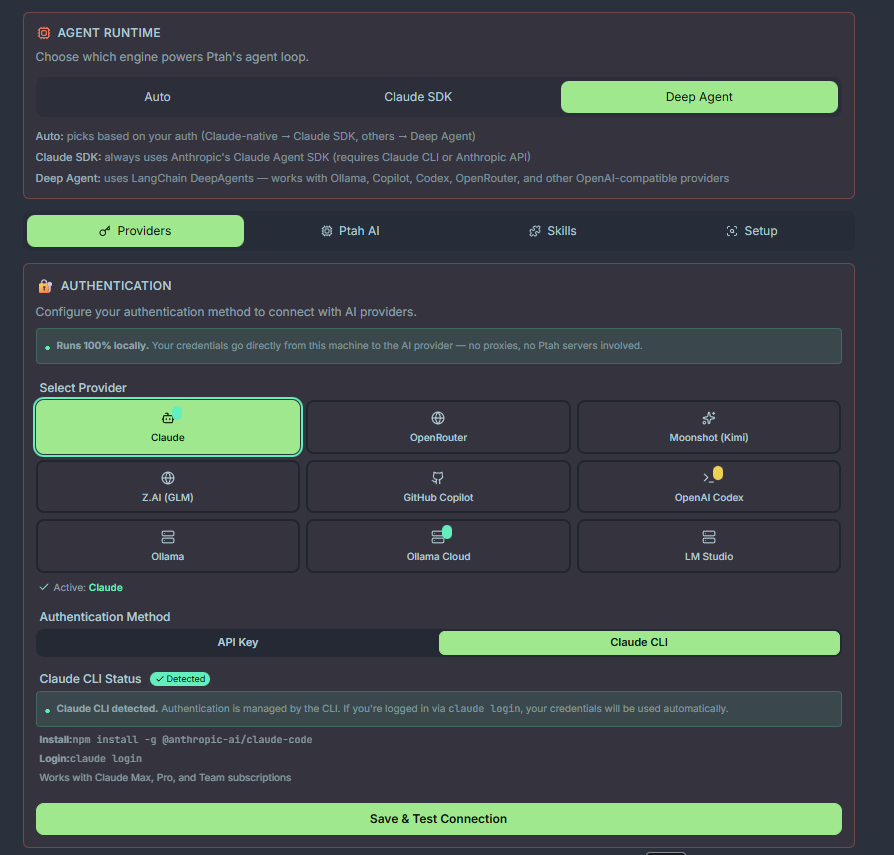
Section titled “Configuring providers”Ptah ships with first-class support for several AI providers. You only need to configure the ones you plan to use.
| Provider | Auth method | Where to get credentials |
|---|---|---|
| Claude | API key | Your Anthropic Console |
| Copilot | OAuth (device flow) or CLI login | Your GitHub account |
| Codex | API key or CLI login | Your OpenAI dashboard |
| Ollama | Local endpoint (no key) | http://localhost:11434 by default |
| OpenRouter | API key | Your OpenRouter dashboard |
| Moonshot (Kimi) | API key | Your Moonshot console |
| Z.AI (GLM) | API key | Your Z.AI console |
Ptah also detects LM Studio and Ollama Cloud, and it accepts a custom Anthropic-compatible endpoint you define yourself. See Providers for the full list and per-provider setup.
Add a provider
Section titled “Add a provider”- Open Settings → Providers.
- Click the provider you want to configure.
- Paste your API key, or click Sign in to start an OAuth device flow.
- Click Test connection to verify the credential works.
Where credentials are stored
Section titled “Where credentials are stored”Provider settings live in ~/.ptah/settings.json — a user-scoped config file outside your project folders. Secrets (API keys, OAuth tokens) are stored via the OS secure credential store, not in plain text in the settings file.
Local models with Ollama
Section titled “Local models with Ollama”If you run models locally with Ollama, Ptah auto-detects a running Ollama daemon on http://localhost:11434. No API key is needed. To point Ptah at a remote or non-default Ollama endpoint, edit the Ollama provider settings and update the base URL.
Next step
Section titled “Next step”You’re ready to start using Ptah. Head over to the Chat guide to send your first message, or jump to Agents to customize the agents created by the setup wizard.