First launch
The first time you open Ptah, you pick a workspace and the app opens straight into it. From there you can run a setup wizard that generates a tailored set of AI agents. This page walks through what to expect.
Welcome screen
Section titled “Welcome screen”Ptah is free and fully open source. First launch goes straight into the app — there’s no account to create, no sign-up, no license prompt, and no trial. Every feature is available immediately.
The first screen is a workspace gate, not an onboarding flow. It shows the Ptah logo, the heading Welcome to Ptah Desktop, and a single Open Folder button. Nothing else is asked of you. The tab bar stays hidden until a folder is open, so this screen is the whole app until you pick one.
Open a workspace
Section titled “Open a workspace”Ptah is workspace-centric: everything — agents, chat sessions, plugins, project analysis — is scoped to the folder you open.
- Click Open Folder.
- Select the root of a project (a Git repository, a package root, or any folder you want to work in).
- Ptah opens the workspace, and the full tab bar — Canvas, Dashboard, Thoth, Tribunal, Tasks, Setup, Marketplace, Settings — appears.
What you land on
Section titled “What you land on”After a folder opens, Ptah shows the Orchestra Canvas — the multi-session grid, empty on a new workspace. Click New Session to add your first tile.
A session with no messages shows two tabs: Ptah Skills and Project Setup. The Project Setup tab is where the setup wizard is offered.
Setup wizard
Section titled “Setup wizard”Ptah does not launch the wizard for you. Start it yourself from either place:
- The Configure button on the Project Setup tab of an empty session.
- The Setup tab in the top tab bar.
The wizard runs seven steps. It scans your project, detects your stack, proposes
an agent roster, tunes each agent’s prompt to your conventions, and writes the
result to .claude/agents/. Most users get the best results by running it once
per project, but nothing depends on it — you can chat without ever opening it.
The scan is local. No source code leaves your machine during analysis.
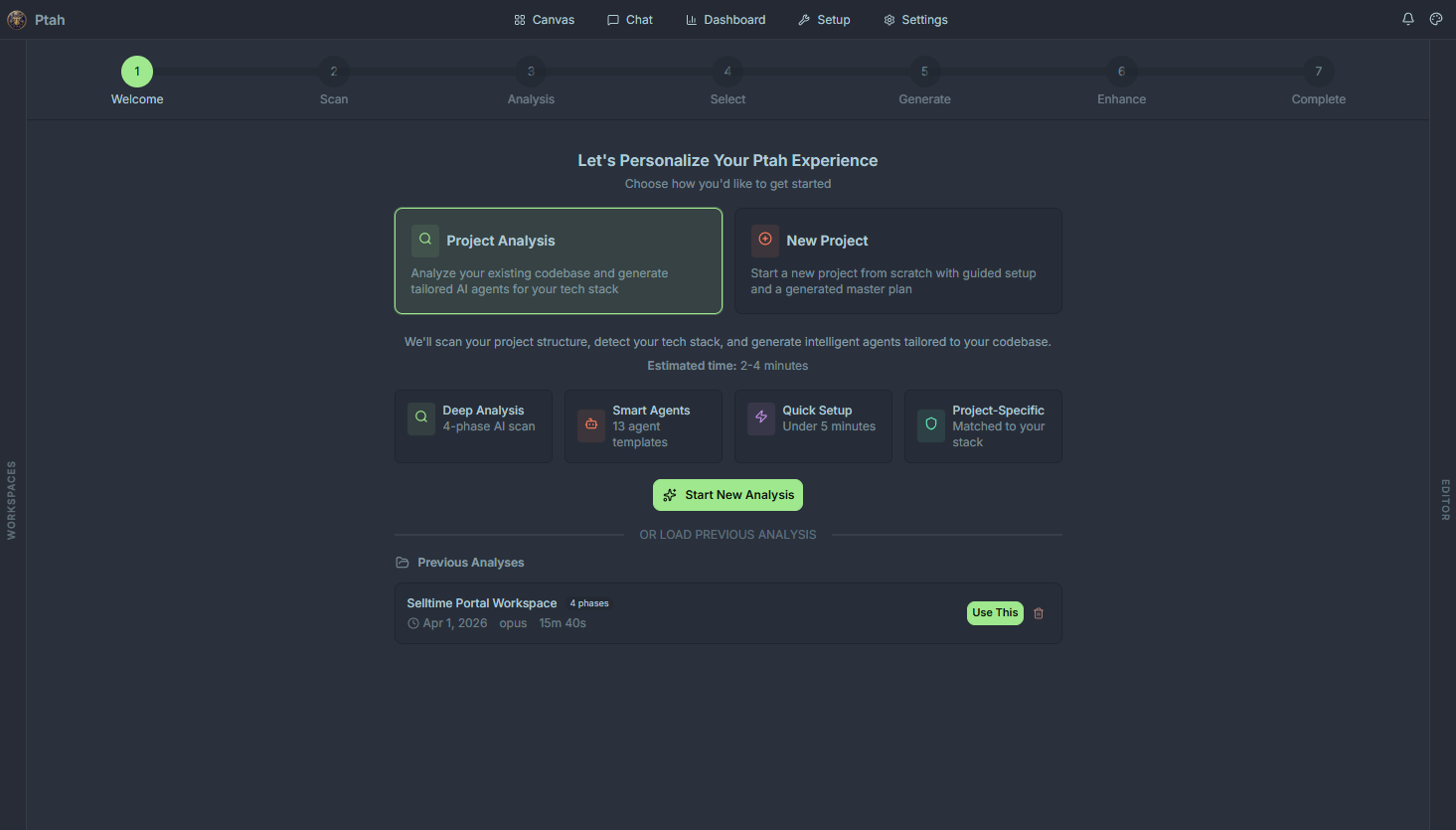
See Setup Wizard for a walkthrough of all seven steps.
CLI agent detection
Section titled “CLI agent detection”Separately from the wizard, Ptah scans your PATH for installed agent CLIs —
Codex, Copilot, Cursor, Antigravity, OpenCode, and Pi — and registers the ones
it finds. Detected CLIs appear in Providers → CLI agents. A missing CLI is
not an error. See CLI agents.
Import existing sessions
Section titled “Import existing sessions”If Ptah finds a Claude CLI session history at ~/.claude/projects/, it imports the conversations matching your workspace automatically, right after the window paints. There is no prompt and no dialog — the session list in the sidebar simply starts short and fills in over the first few seconds. Imported sessions remain fully editable; the import is a one-time copy, not a live link.
Optional: Ptah Builders
Section titled “Optional: Ptah Builders”Ptah never asks you to sign in, and signing in unlocks no features — every local capability is free and open source whether you have an account or not.
An optional Ptah Builders membership adds the SaaS-building course, weekly live sessions, member skill packs, the private community, and priority support. If you have one, attach it from the Membership card at the top of Settings. See Signing in for details.
Next step
Section titled “Next step”Continue to Signing in to configure your AI providers.